
Remove the background of a photo, what works and what resists
Published · Updated 2 min read
Removing the background of a photo, which is called cutting out, leaves the subject alone on a transparent background: a product for a shop, a portrait for a document, an object to place on another scene. The tool gives very good results when the subject is sharp and contrasts with what surrounds it, and more fragile results in a few situations worth knowing.
What the tool does
It finds the main subject and returns a PNG image with a transparent background. The processing happens on your device, with the photo sent nowhere. On first use, the cut-out model, about 170 MB, downloads in several pieces, which takes a moment; the browser then keeps it. Once ready, it takes a few seconds per photo depending on the power of the device.
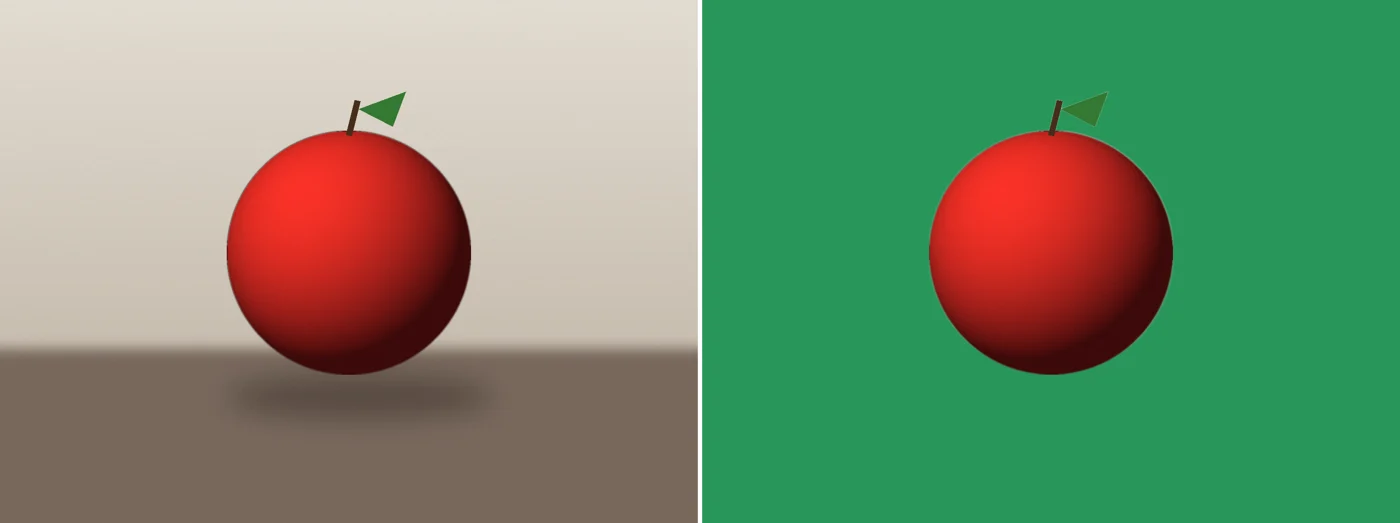
What works well
A shoe photographed on a white background, a cat on snow, a flower on a dark background: subjects well separated from their surroundings are cut out cleanly, with sharp edges.
What resists
- Very fine parts: on a flower, the stem may disappear with the background.
- A dark subject on a dark background: on a watch placed on black, part of the strap may be lost.
- Fur and blurred edges: a cat sometimes keeps a slight light halo around its fur.
- Objects touching the subject: on a seated person, a piece of the armchair may remain around them.
Prepare the photo
For a cleaner result, take care over the shot: even lighting, a background that clearly differs from the subject, a tight framing around the subject. Once the background is removed, try the result on a light background then on a dark one, to see whether edges remain visible.
What it is used for
A product photo for a shop, a portrait to put in a document, a logo cut from a white background, or an object to place on another scene: cutting out gives a transparent PNG ready to reuse.
Check the result
- Place the PNG on the background you want.
- Zoom in on the edges, especially around fur and fine parts.
- Keep the original photo.
Frequently asked questions
- Is my photo sent to a server to remove the background?
- No. The processing happens on your device. On first use, a model of about 170 MB downloads, then the browser keeps it.
- What results can you expect on fur or a fine stem?
- These are the most fragile cases: a stem may disappear, fur may keep a slight halo. Try the result on a light background then on a dark one.
- How do you get a cleaner cut-out?
- Even lighting, a background that clearly differs from the subject and a tight framing improve the result.
- Why is the resulting file a PNG?
- PNG handles transparency, which JPG does not.