
Number the pages of a PDF and add a watermark
Published · Updated 3 min read
Numbering the pages of a PDF helps you find your way and refer to it: "see page 12" only makes sense if the number is printed. A watermark, for its part, signals a status, such as DRAFT or CONFIDENTIAL. Both are set in the same tool.
The numbering settings
Add PDF watermark numbers the pages from the "Number pages" button. A page number is set with four choices: the area, the alignment, the format and the first number.
| Setting | Choices offered |
|---|---|
| Area | Header or footer |
| Alignment | Left, center or right |
| Format | 1, Page 1, Page 1 / N or Page 1 of N |
| First number | A whole number starting from 1 |
| From page, to page | The range of pages numbered, all by default |
An exact position on each page
The number is placed 30 points from the edge, in 10-point text, slightly muted. The alignment takes the width of the text into account: even on a document whose pages have different sizes, the centered number stays in the middle of each page, and the right-hand number leaves the same 30-point margin. A long format such as "Page 100 / 120" stays entirely within the page.
A different first number
The first number is useful when the document continues another. With a start at 5 on three pages, the "Page 1 / N" format gives Page 5 / 7, Page 6 / 7 and Page 7 / 7: the total is the last number.
Numbering part of the document
The "From page" and "To page" fields limit the numbering. On a 10-page report, the range from 3 to 8 gives "Page 1 de 6" on page 3, up to "Page 6 de 6" on page 8, and no number elsewhere. It is handy for leaving the cover and appendices without a number. With a first number of 5 and the range from 4 to 6, pages 4, 5 and 6 carry Page 5, Page 6 and Page 7.
An already numbered PDF
If the document already carries a number, for example in the middle of the footer, numbering in the same place superimposes the two texts. Then choose the header, or another alignment.
The text watermark
The Text mode offers a text, a color, an opacity, a size, a rotation and, in tiled mode, a spacing. The Free mode places the watermark once per page, the Tiled mode repeats it over the whole page.
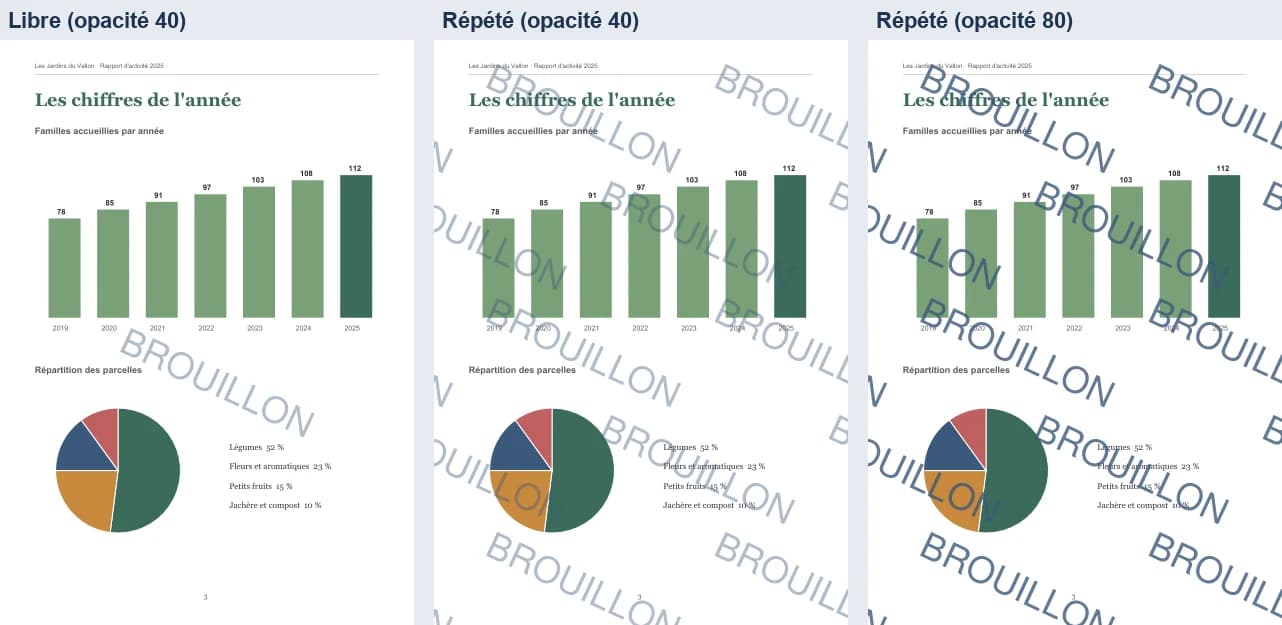
At 40%, the text of the page stays legible. At 80%, the watermark partly covers the labels of a chart: keep strong opacities for sparse pages.
What the watermark changes in the file
The watermark is text added to the PDF. The original text stays present and selectable, and the weight hardly moves: a 7.9 MB report stays at 7.9 MB with a tiled watermark. A watermark signals a status, it does not protect the content. To limit access, see Protect a PDF with a password, limits and good habits.
For which documents
A report, a file, submissions or a manuscript to number, and a draft, a quote or an internal document to mark with a watermark.
Check before sending
- Open the first and the last page of the result.
- Check that the number covers no existing text.
- Look at a dense page to judge the legibility of the watermark.
- If the document is to be assembled with others, number after the merge, as in Merge PDFs in the right order.
Frequently asked questions
- How do you number only part of a PDF?
- With the "From page" and "To page" fields. Pages outside the range stay without a number.
- How do you start the numbering at 5?
- Enter 5 as the first number. With three pages and the "Page 1 / N" format, you get Page 5 / 7 up to Page 7 / 7.
- Does a watermark protect a PDF?
- No. It signals a status, such as DRAFT or CONFIDENTIAL. To limit access, protect the file with a password.
- Which opacity should you choose for the watermark?
- Around 40% to keep the text legible. At 80%, it partly covers a dense page.