
Create a QR code that scans the first time
Published · Updated 3 min read
A QR code that refuses to scan is most often a badly set code, not a faulty phone. Four things decide its readability: short content, strong contrast, sufficient size and a suitable correction level. Knowing them avoids discovering the problem once the code is printed on a thousand flyers.
What the tool sets
The content can be a text, a website address, a Wi-Fi network, an email, a phone number or a business card. The size ranges from 128 to 1,024 pixels, with 512 by default. The margin around the code ranges from 0 to 64 pixels, and you choose the two colors. Four error correction levels are offered: L, M, Q and H.
Short content gives a simpler code
A QR code is a grid of small squares, the modules. The longer the content, the bigger the grid. An address of 36 characters gives, at level L, a code of 29 by 29 modules. An address of 140 characters gives 49 by 49 modules: more squares, so smaller squares at equal size, and a code that is harder to read. Shorten the content when possible, for example with a shorter address.
The correction level
Error correction lets the code stay readable even when damaged, dirty or partly hidden. The higher the level, the more damage the code withstands, and the bigger it gets. For the same address of 36 characters, level H gives 37 by 37 modules instead of 29 by 29. For the one of 140 characters, it gives 61 by 61 instead of 49 by 49. Choose L for a clean display on screen, and H or Q for a medium exposed to rubbing or scratches.
Contrast
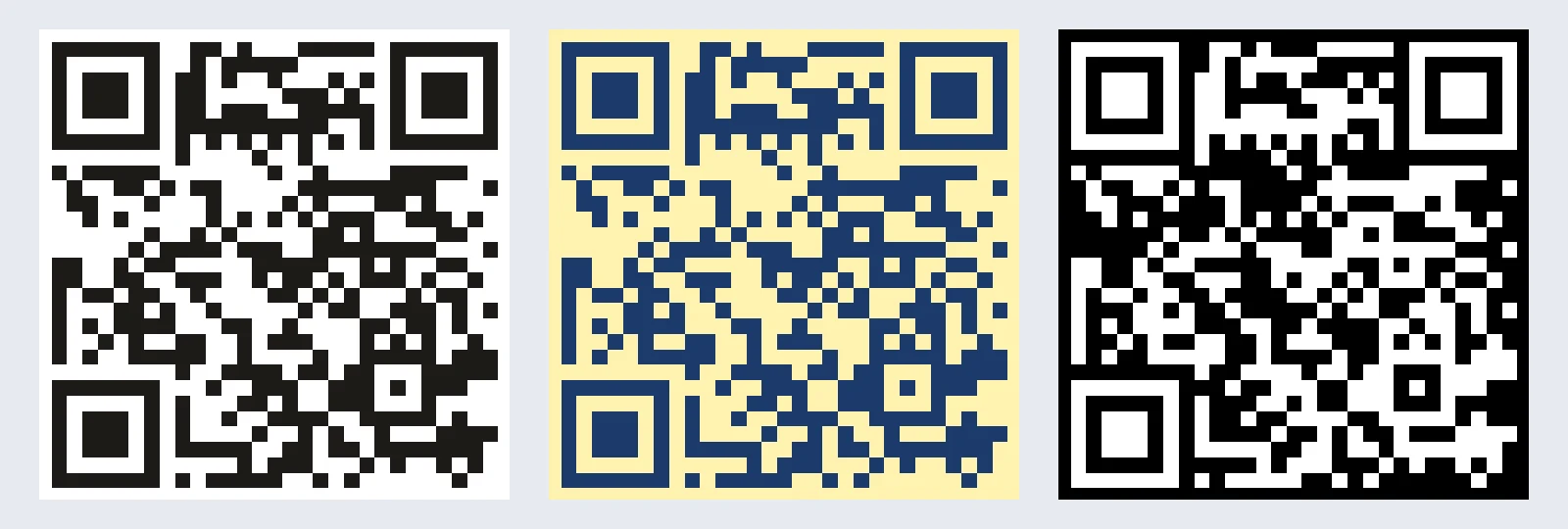
A reader tells the code from the background through their difference in brightness. The tool refuses a contrast below 4.5 to 1 and shows "Le contraste entre le code et le fond est insuffisant pour une lecture fiable". A dark blue code on a light yellow background reads without difficulty. A white code on a black background, on the other hand, is not read by every reader: many expect a dark code on a light background.
Size
At 128 pixels, the 29-module code has squares of about 4 pixels, and the 49-module code squares of about 2.6 pixels. A computer reader still reads them, but a phone or a poor-quality print will be less tolerant. The longer the content, the more you need to enlarge the code.
For which media
A poster, a business card, a menu, a badge or a screen: the size, the contrast and the correction level to choose depend on the place and the reading distance.
Check before distributing
- Scan the code with two different phones.
- Print it at real size if it is for paper, then scan the printed page.
- Check the address shown after scanning.
Frequently asked questions
- Why does my QR code not scan?
- The most frequent causes are content that is too long, insufficient contrast, a size that is too small or a white code on a black background, which many readers do not read.
- Which correction level should you choose?
- L for a clean display on screen, H or Q for a medium exposed to rubbing or scratches. The higher the level, the bigger the code.
- What contrast is required?
- The tool refuses a contrast below 4.5 to 1 between the code and the background.
- How do you make a QR code simpler?
- Shorten the content, for example with a shorter address: less content gives fewer squares, so bigger squares.